
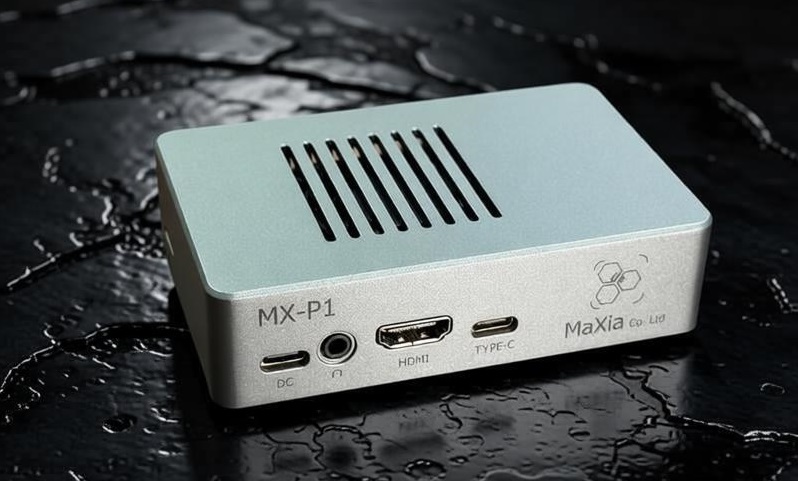
Hive Cloud Box Quick Start: Complete First Use in 5 Minutes
This tutorial guides you through the entire process of unboxing, connecting, and launching the cloud phone on the Hive Cloud Box, allowing you to get started quickly in just 5 minutes.
Preparations
Before you begin, please make sure you have the following items ready:
- Hive Cloud Box Host × 1
- 12V Power Adapter × 1
- Gigabit Ethernet Cable (or Wi-Fi environment)
- Monitor + HDMI Cable (optional, can also be controlled purely remotely)
Step 1: Hardware Connection
- Insert the Ethernet cable into the gigabit port on the back of the cloud box.
- Connect the HDMI to the monitor (optional).
- Plug in the 12V power supply and press the power button.
When the cloud box starts up, the indicator light will flash orange, and after about 30 seconds, it will turn to a steady green, indicating that the system is ready.
Step 2: Access the Management Panel
After the system has started, access the following URL from a browser on a device within the same local network:
http://nestbox.local:8080
Or access via IP address (the IP is displayed on the cloud box screen or in the router’s backend):
http://192.168.x.x:8080
Step 3: Create Your First Cloud Phone Instance
- After logging in, click on “Create New Instance”.
- Select the configuration (for beginners, 4 cores/4GB is recommended).
- Choose the Android version (Android 12 is recommended).
- Click “Create Now” and wait for about 1 minute for the initialization to complete.
Step 4: Connect and Use
Once the instance is successfully created, click the “Connect” button to see the full Android interface in your browser.
Install the applications you need and start using them!
Frequently Asked Questions
Q: Can’t find nestbox.local?
A: Make sure the cloud box and your computer are on the same local network, or try entering the IP address directly.
Q: Instance creation failed?
A: Check the remaining disk space; each instance requires approximately 8GB of storage space.
Having issues? Consult the help documentation or contact customer service.